ClientPad + Microsoft 365 Calendar
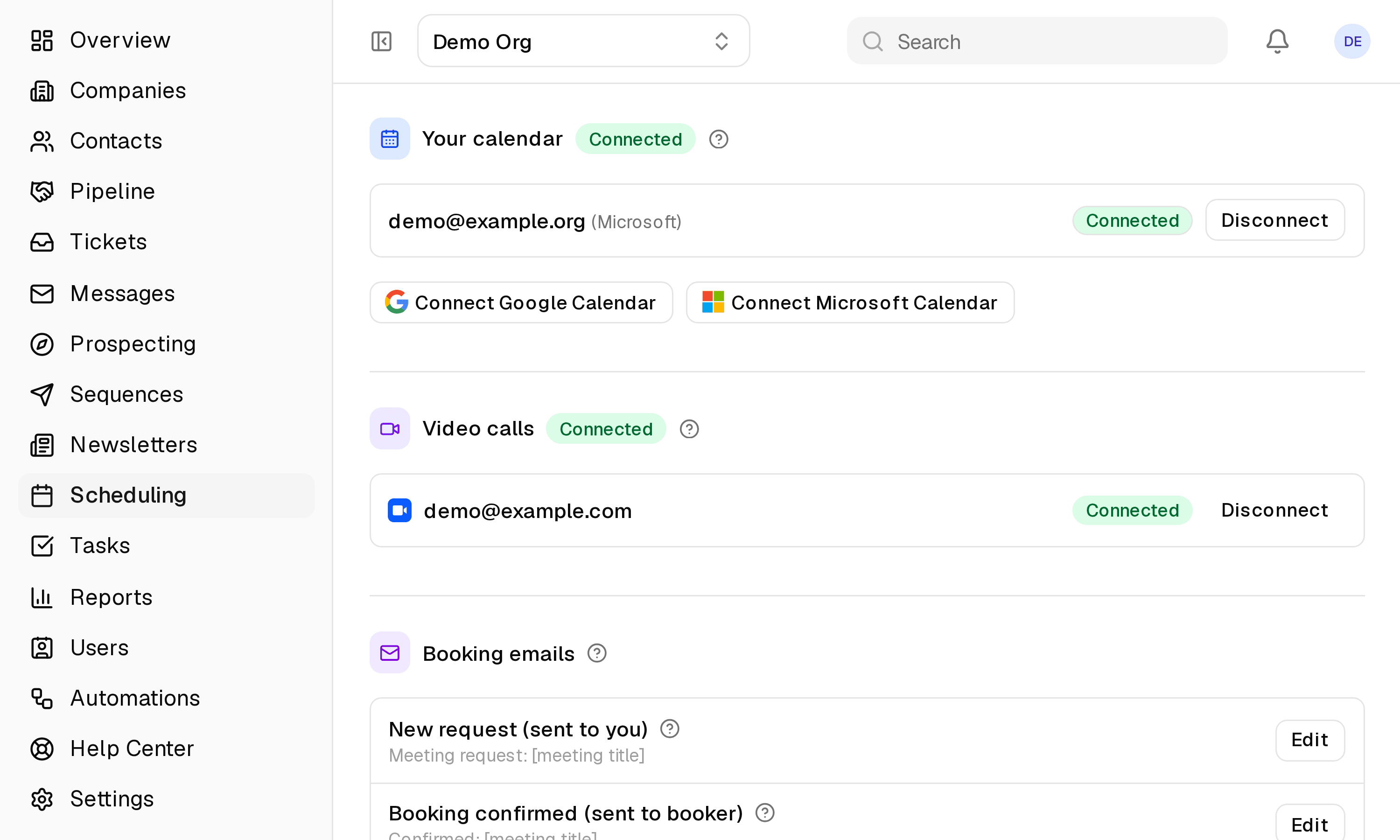
Outlook and Microsoft 365 calendars work the same way as Google: free time only, and every booking on your calendar.
- Calendar & video calls
- Every plan, including Free
- Set up in Scheduling → Your calendar
app.clientpad.com
What you can do
- Busy time from your Microsoft calendar is excluded from your booking pages.
- Bookings become Outlook events, kept in step when they move or are cancelled.
- Invitations can be sent from your own calendar, with the booker's answer flowing back into ClientPad.
How to connect it
- Open Scheduling → Your calendar and click Connect Microsoft 365.
- Sign in and approve the Calendars.ReadWrite permission.
- Choose the calendars on each booking page.
Access & privacy
Asks only for calendar access (Calendars.ReadWrite). It never requests access to your mail. Tokens are encrypted at rest, and disconnecting removes them.
Also in calendar & video calls
- Google Calendar — Your booking pages offer only the times you are actually free, and every booking lands on your calendar.
- Zoom — A Zoom meeting for every appointment booked through your booking page, with the join link in every email and invite.
- Google Meet — Meet links made with the calendar event, no extra account to connect.
- Microsoft Teams — Teams meetings created with the Outlook event for every booking.
Try it with Microsoft 365 Calendar
Free plan, no card. Connect it from inside the app in a few minutes.